PolishedMatch user manual
Installation
1. Hardware setup
We recommend to set up your PolishedMatch device on your desk next to your computer screen.
2. Power supply
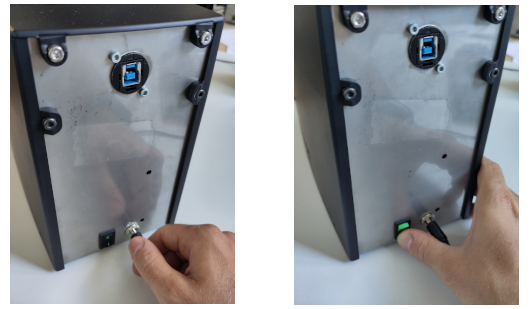
Connect the power supply and turn on the device.
Info
Please only use the provided power supply. Non-homologated power supplies could cause damage to the device, which will void the warranty of the lease agreement.
3. USB connection
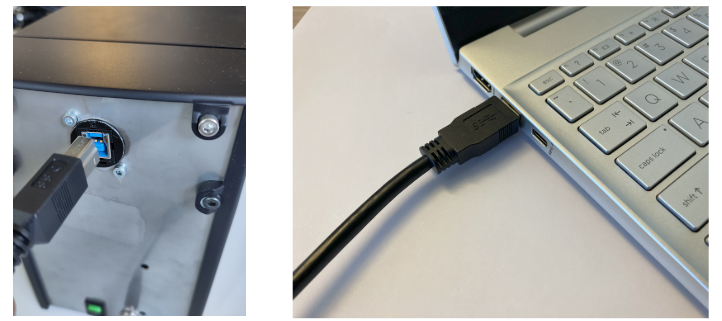
Connect the device to a USB 3 port on your PC with the provided USB cable.
Info
Please only use the provided USB cable. Lower quality USB cables can result in a slow down or loss of communication between the PC and the PolishedMatch device.
4. Software
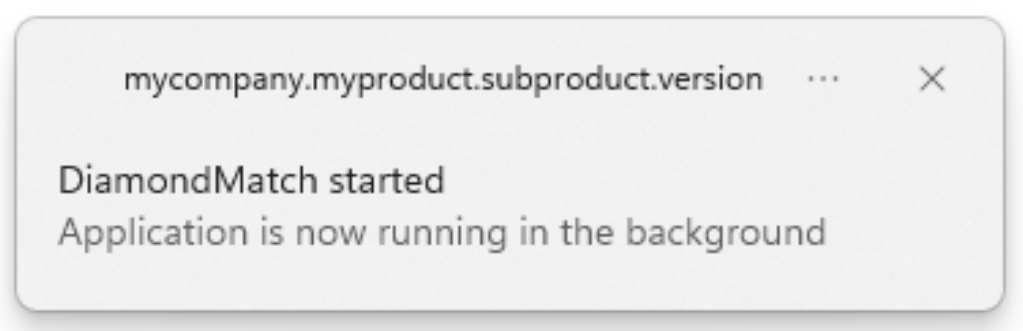
Start the DiamondMatch program. You will see a pop-up stating that the program has started.
Info
If you have ordered a PC with your PolishedMatch device, the DiamondMatch program is pre-installed and located on the desktop.
If you need to install or update the program, open this link, sign in with your credentials and download and install the latest DM Service.
Please refer to account management in case you have trouble signing in.
In case your computer was not provided by Spacecode, you will also need to download and install the Galaxy Windows SDK. The software is free but requires you to create an account in order to download it.
 →
→
Fingerprinting
The fingerprint action is the essential step to start tracing and authenticating gemstones with the DiamondMatch technology. Each fingerprint represent a digital record uniquely associated to a physical gem.
To fingerprint a gem, click on DiamondMatch → PolishedMatch → Fingerprinting in the side bar or open this link.
Please make sure that the device is plugged, switched on and connected to the PC running the DiamondMatch program. If the device is correctly configure you will see a black screen in the fingerprinting page. Please follow the instruction below and the messages on the screen to create a new fingerprint:
-
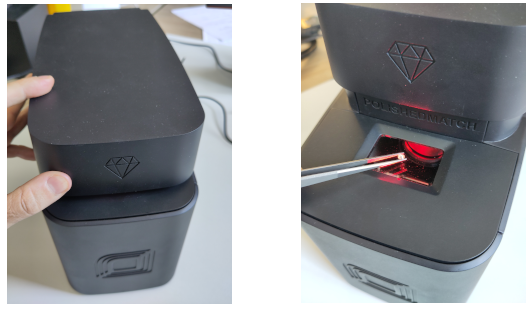
Open the PolishedMatch device by pushing on the lid front edge. The lid will slide back and up and lock open. Place the gem on the device imaging glass.
-
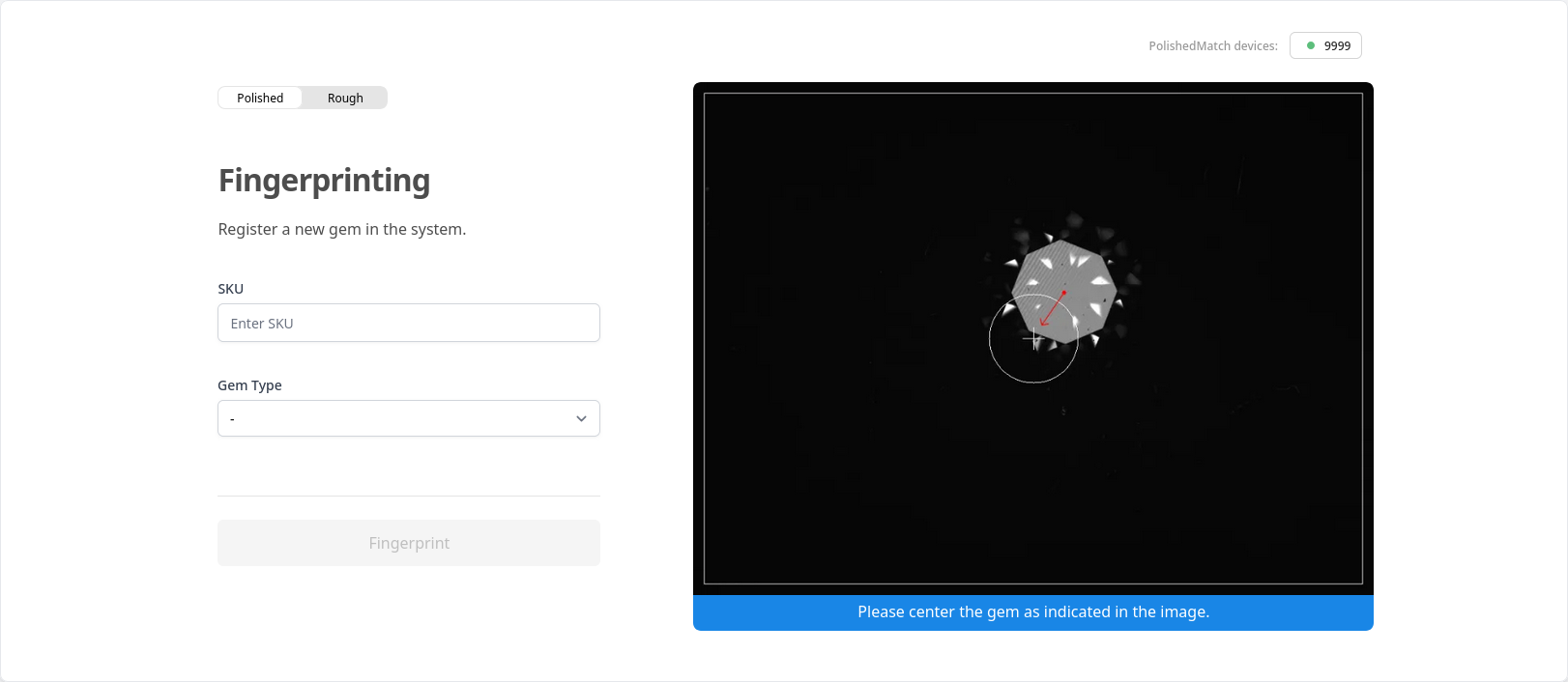
Follow the instruction on the bottom of the preview screen to center the gem on the glass.
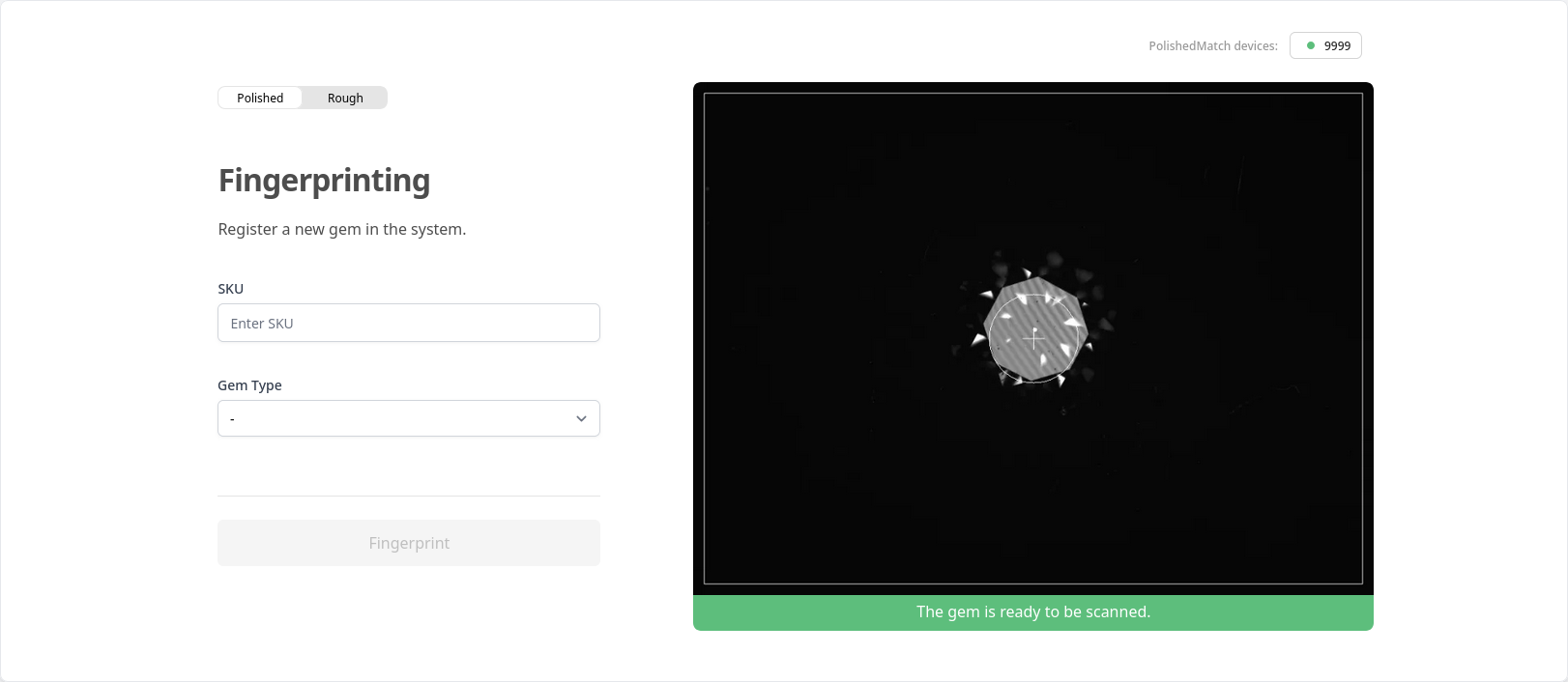
-
Fill in the item SKU and select the gem type from the drop-down menu. Press the Fingerprint button.
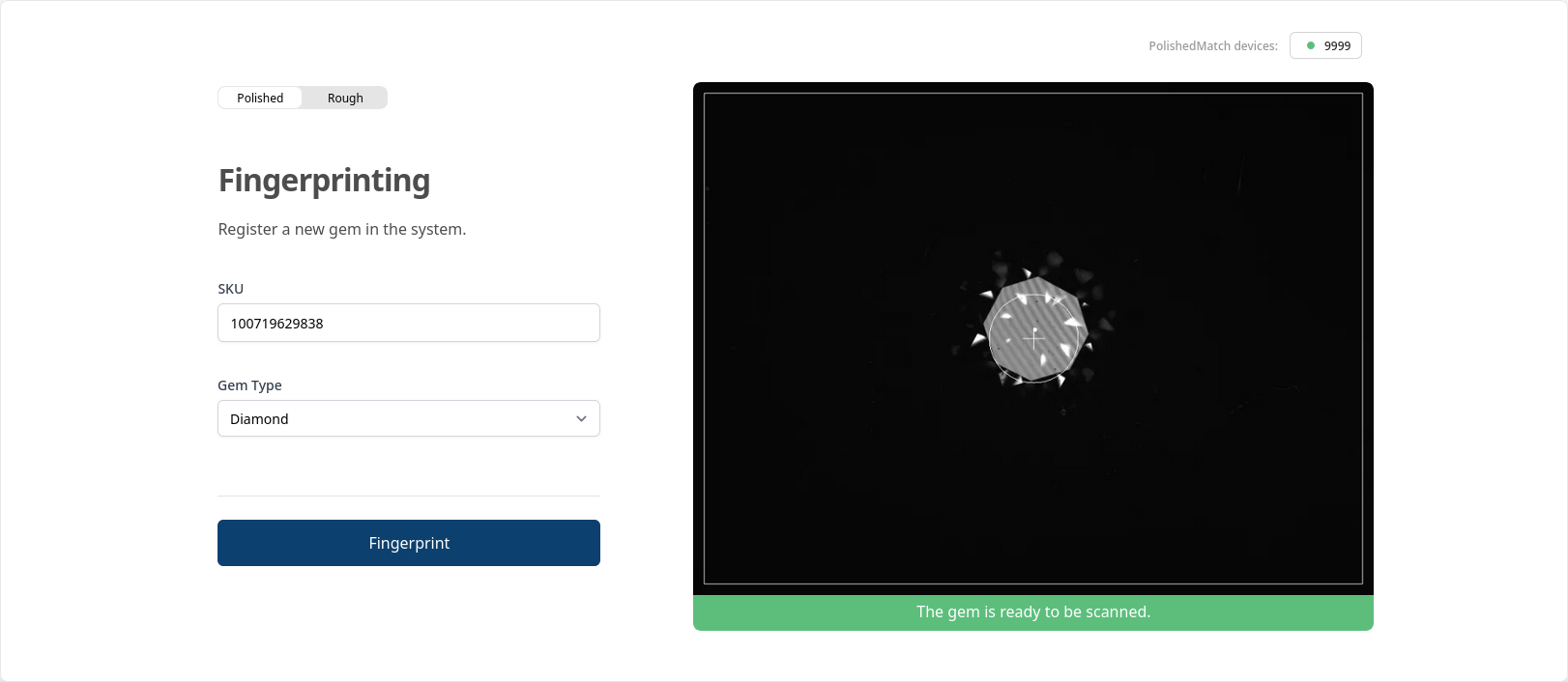
-
The system might request to take a second image. In this case a pop-up window will open requesting to rotate the gem. After repositioning the stone press Finalize Fingerprint to complete the process.
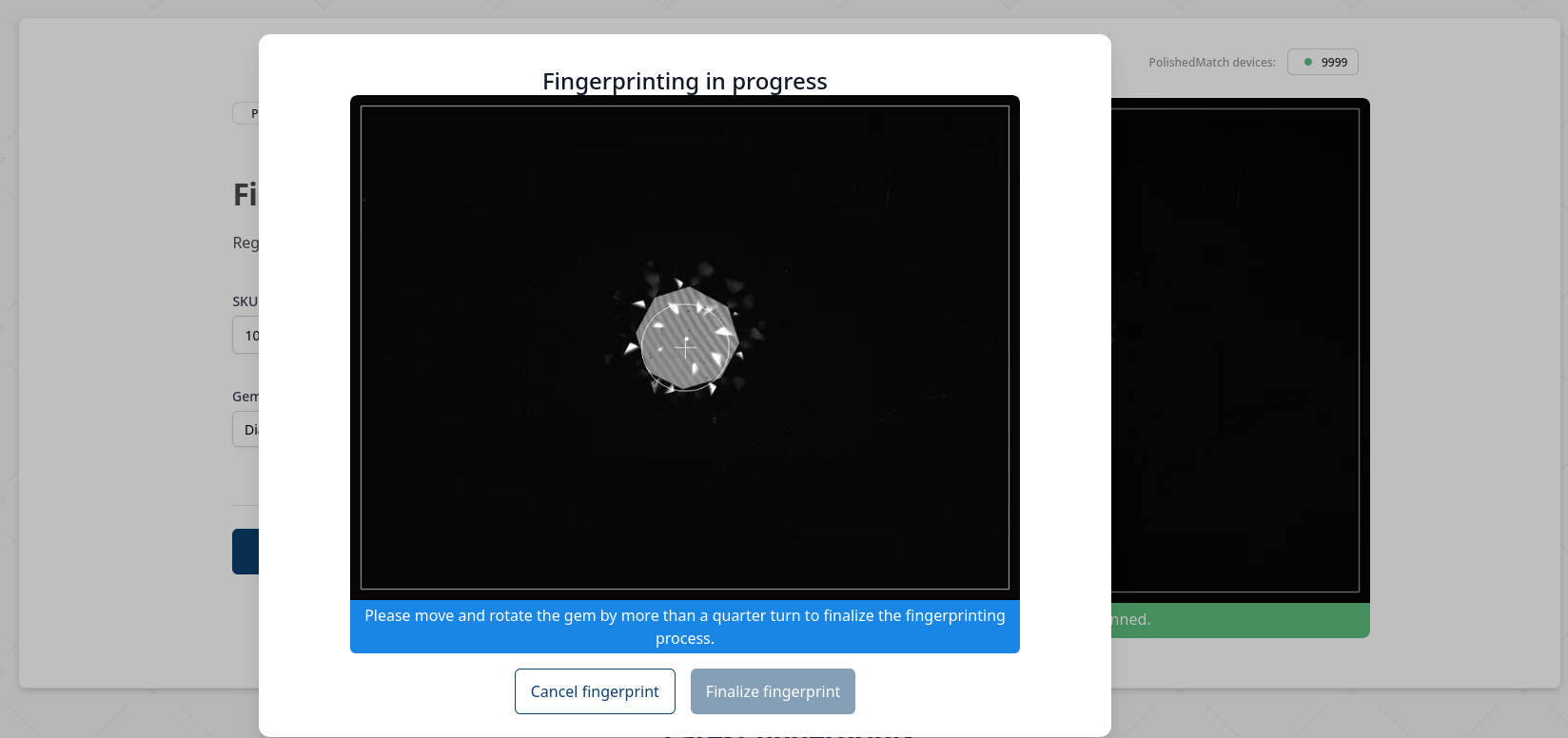
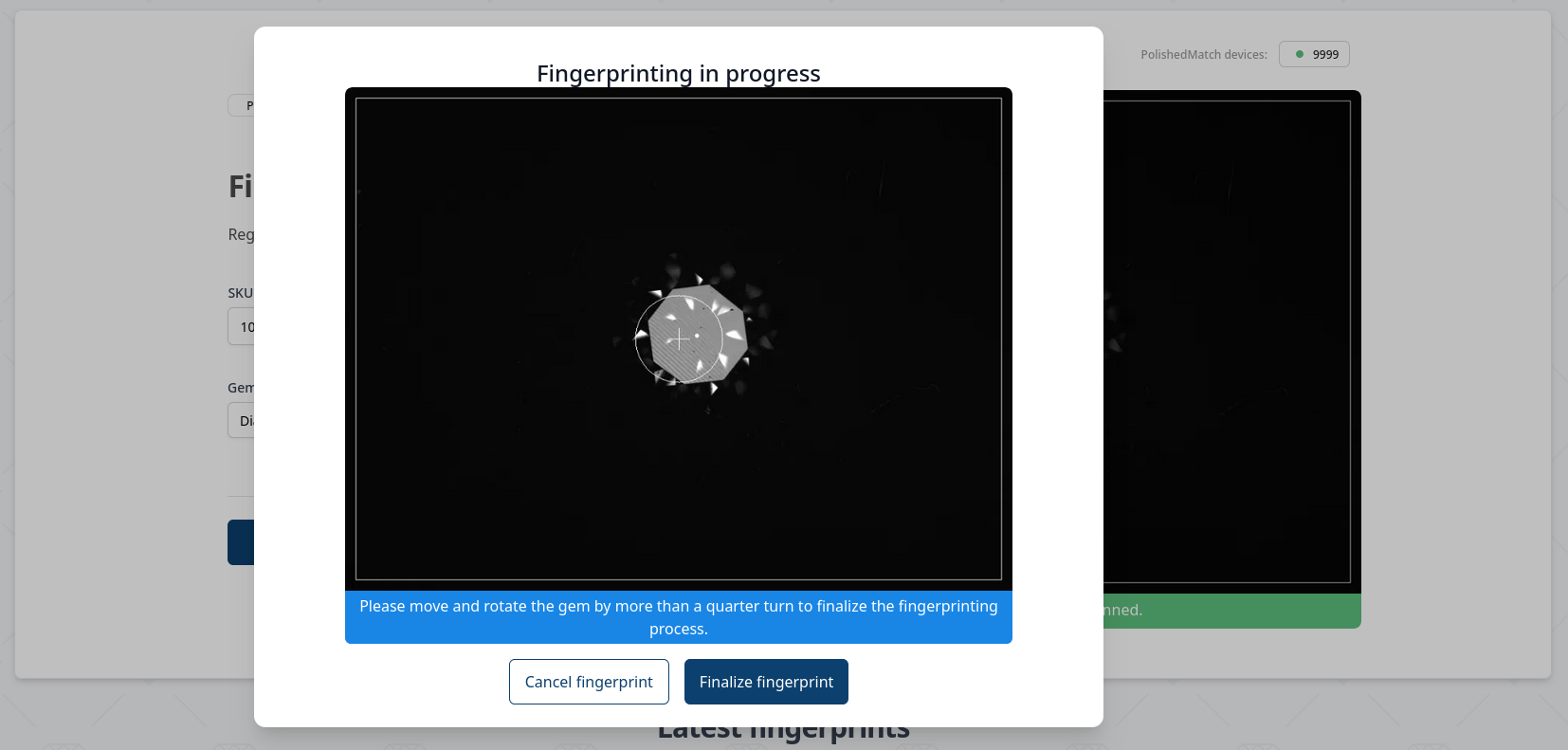
-
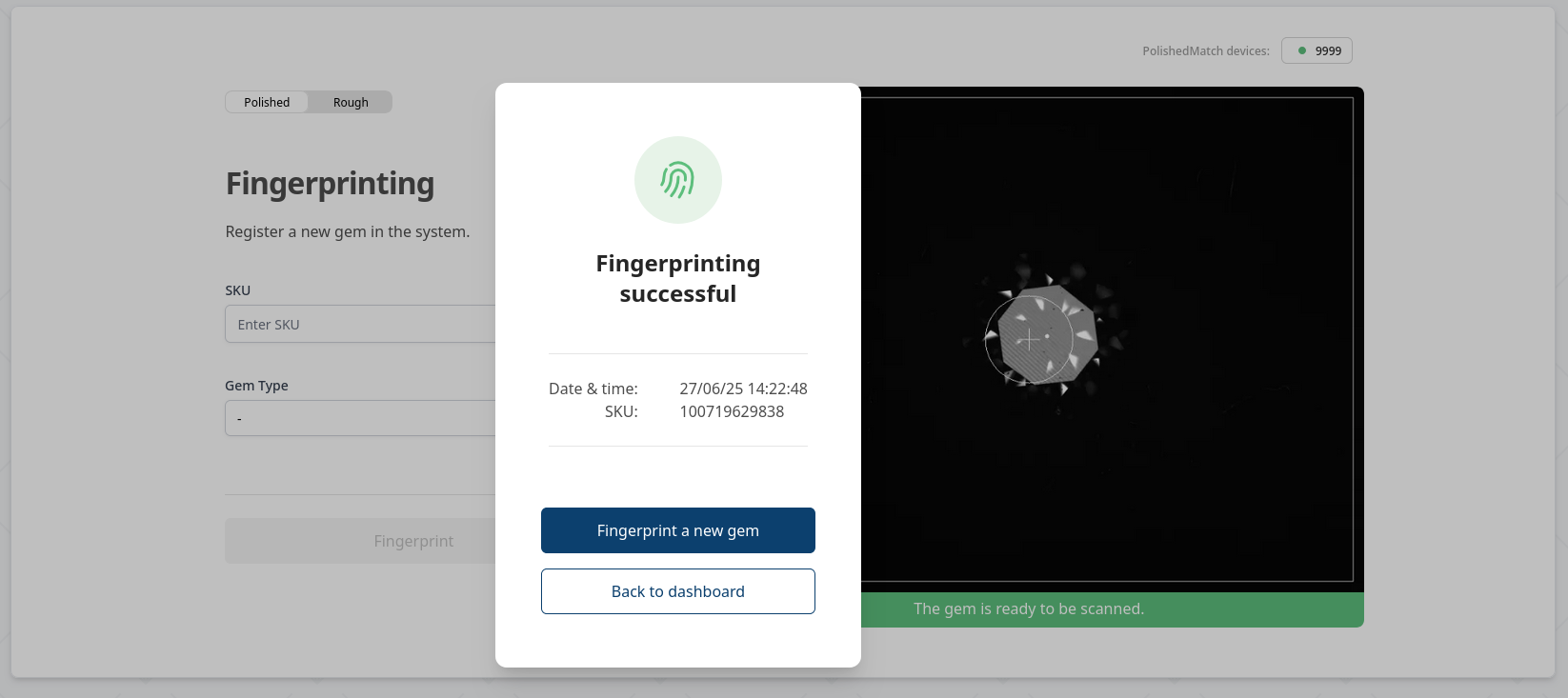
The fingerprinting results will be displayed in a few seconds. If the fingerprint was correctly generated you can remove the gem from the glass and move on to the next fingerprint.
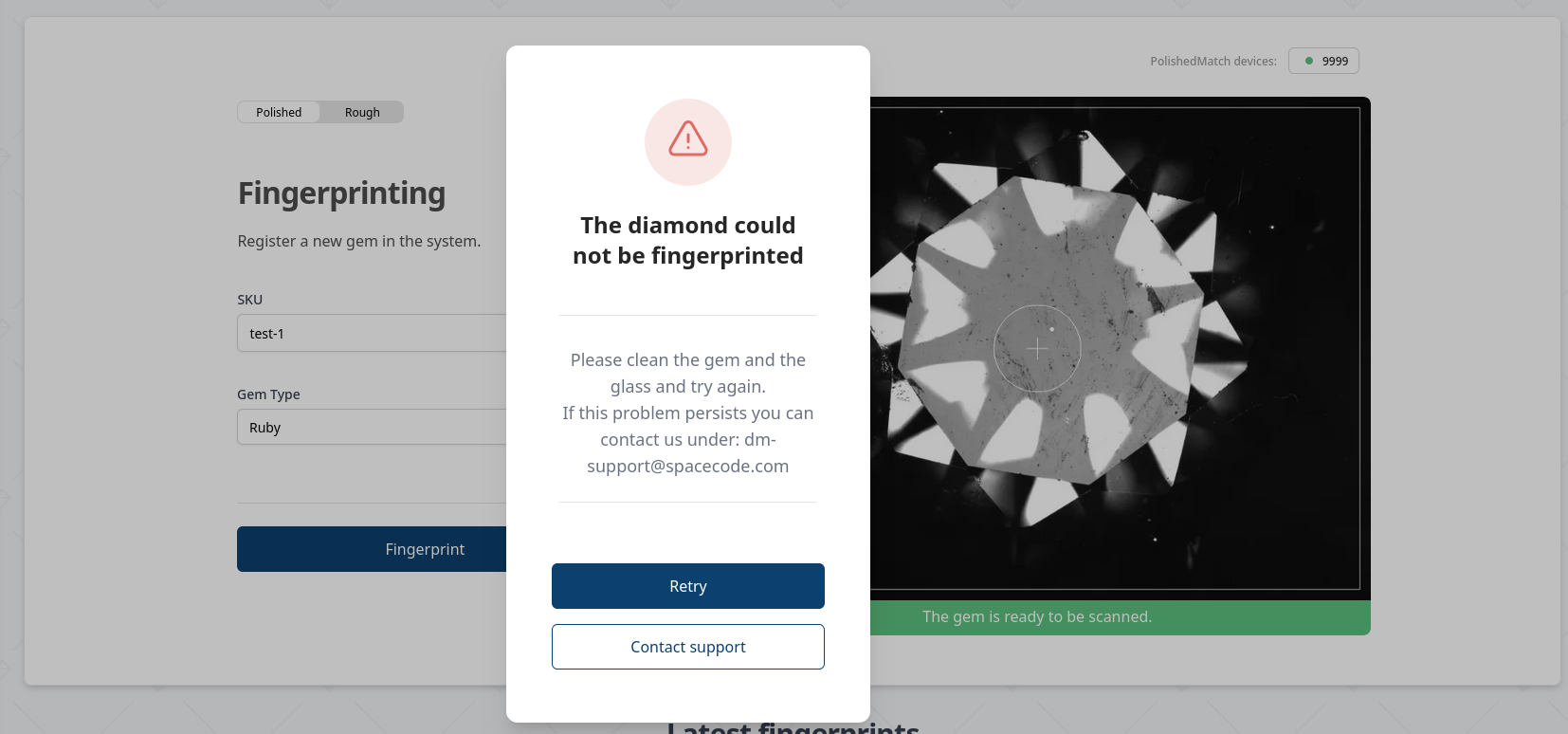
If the fingerprint was not successful an error message will be displayed in the pop-up, please follow the instruction and try to fingerprint the item again.
Common failure causes are:
- The gem table facet or the device glass are dirty, please wipe both with a clean microfiber cloth.
- The selected gem type is not correct, please check your selection.
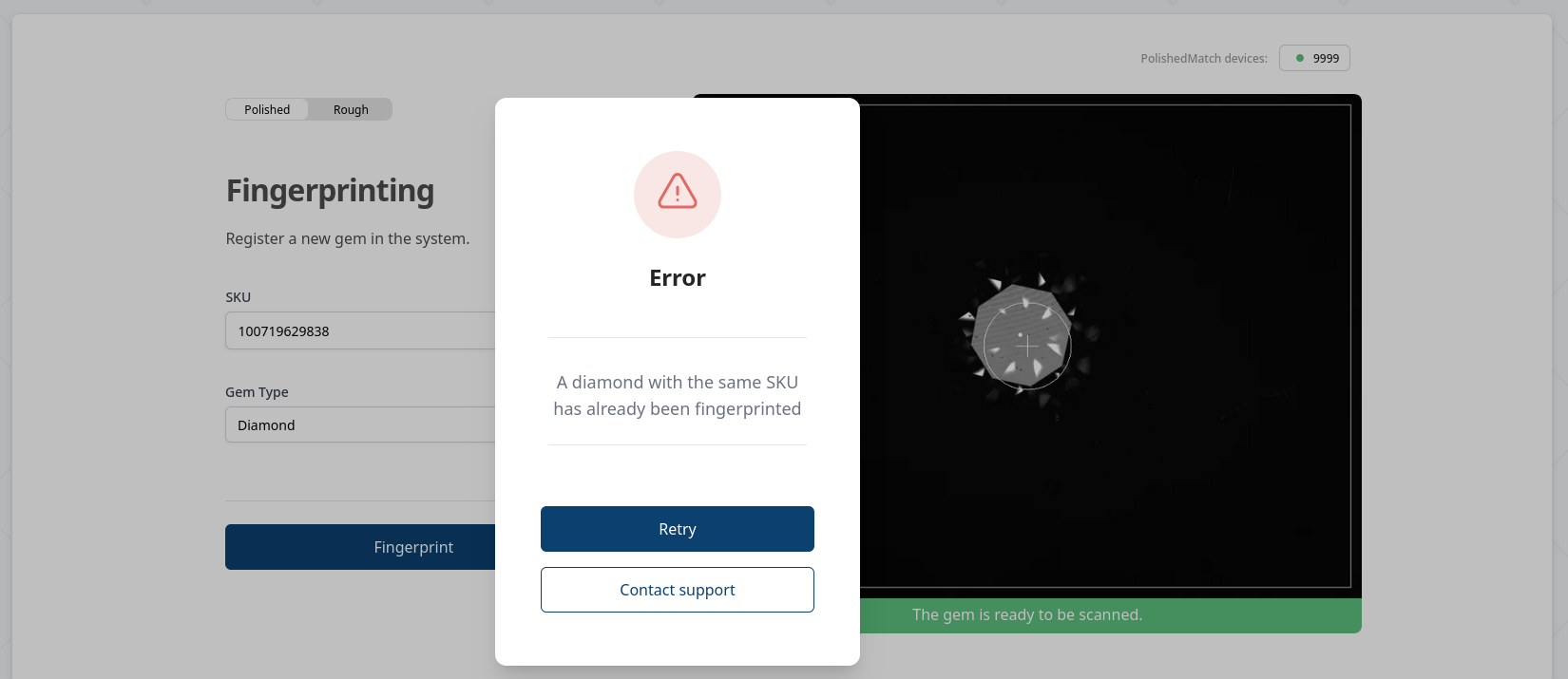
- The SKU is already in use and associated to another fingerprint. Please select a different SKU.
Examples of successful and failed fingerprints can be found in the images below (click on an image to enlarge).
Note
Every gem is linked to a SKU at fingerprinting under which it can be found in the inventory, and against which it can be authenticated. If you wish to associate a new fingerprint to a previously fingerprint SKU you must delete the SKU from the inventory first.
Authentication
Authentication provides users the ability to check the matching between one SKU and a physical gem.
To authenticate a gem, click on DiamondMatch → PolishedMatch → Authentication in the side bar or open this link.
Please make sure that the device is plugged, switched on and connected to the PC running the DiamondMatch program. If the device is correctly configure you will see a black screen in the authentication page. Please follow the instruction below and the messages on the screen to create a new fingerprint:
- Open the device and place the gem on the glass (see steps 1 and 2 of Fingerprinting)
-
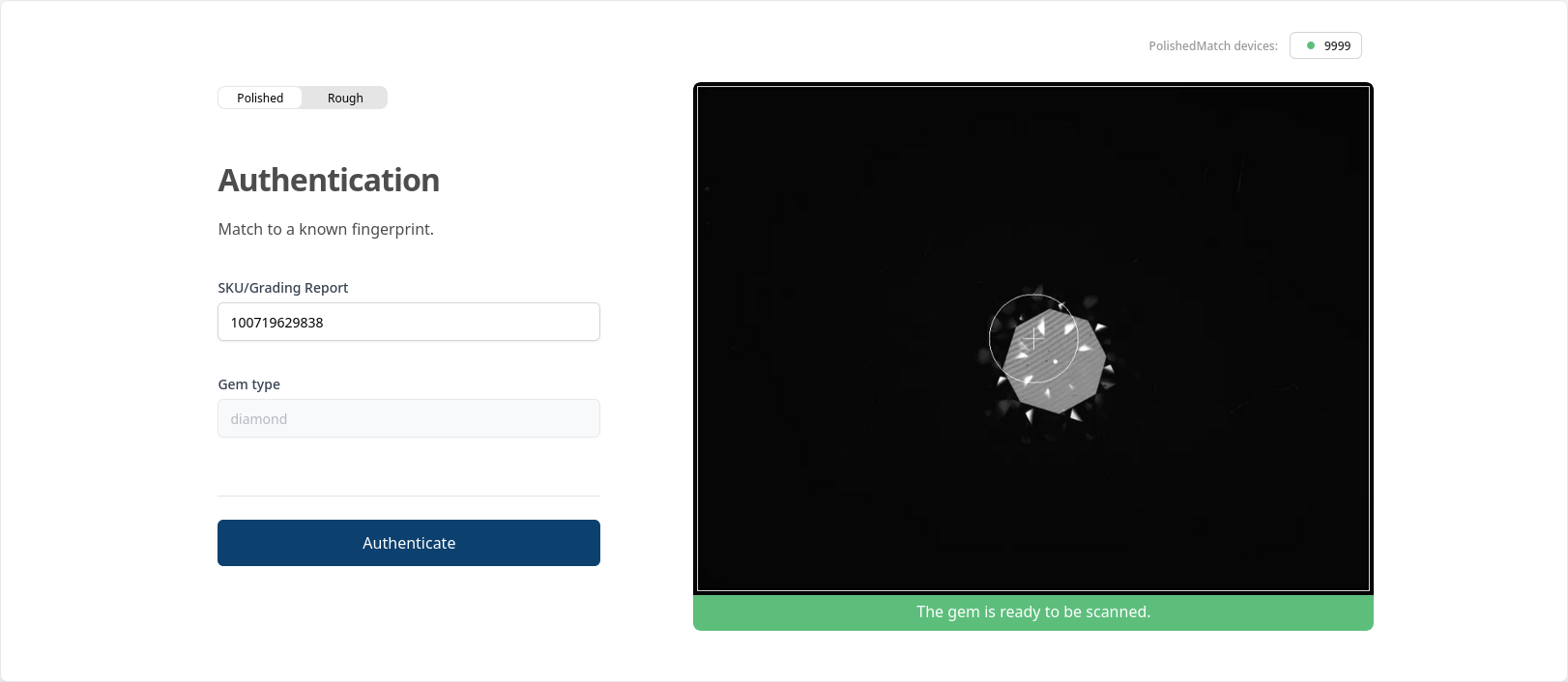
Fill in the SKU, the Type field will be automatically populated based on the gem type recorded in the SKU fingerprint. Press the Authenticate button.
-
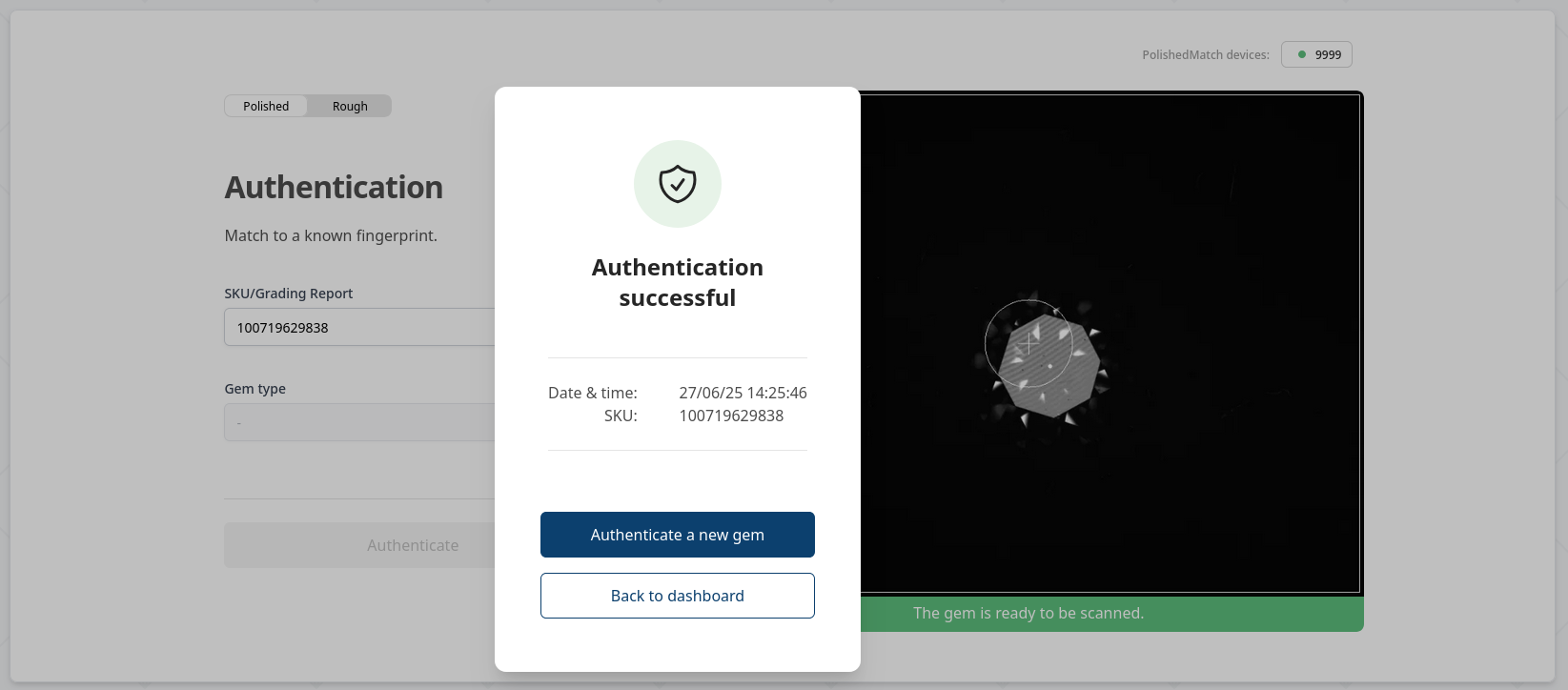
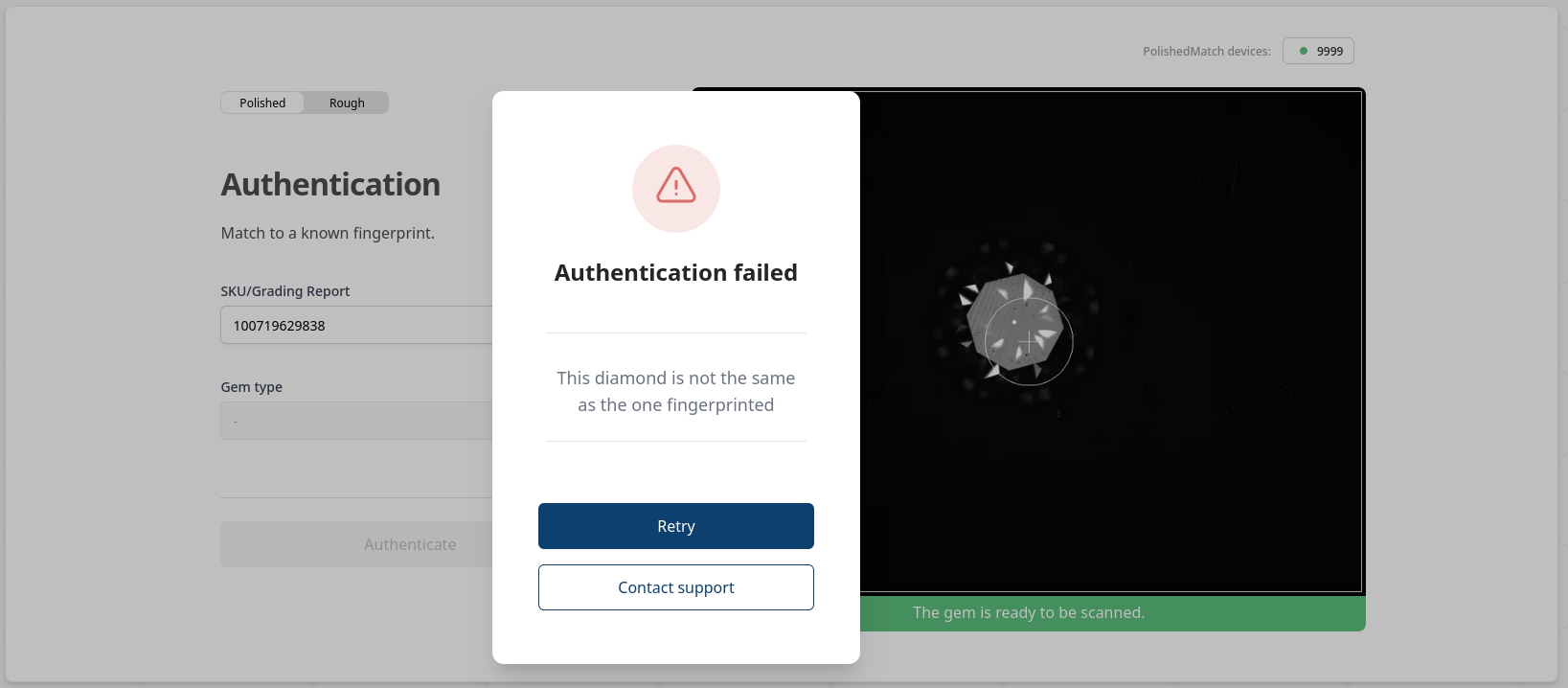
After few seconds, the authentication results will be displayed in a pop-up. Possible results:
- Successful authentication: green pop-up confirming that the gem being analyzed corresponds to the selected SKU.
- Failed authentication: red pop-up, the gem does not match the selected SKU, i.e. the gem does not match the previously recorded fingerprint and its identity is not confirmed.
- Error: red pop-up, an error occurred while processing the image. Please clean the gem and the device glass and try again.
Identification
Identification provides users the ability to match a physical gem against the all of the company fingerprinted stones. The DiamondMatch system will return the best matching record if any is found, or warn the user that gem at hand does not match any recorded fingerprint.
To identify a gem, click on DiamondMatch → PolishedMatch → Authentication in the side bar or open this link.
Please make sure that the device is plugged, switched on and connected to the PC running the DiamondMatch program. If the device is correctly configure you will see a black screen in the identification page. Please follow the instruction below and the messages on the screen to create a new fingerprint:
-
Open the device and place the gem on the glass (see steps 1 and 2 of Fingerprinting)
-
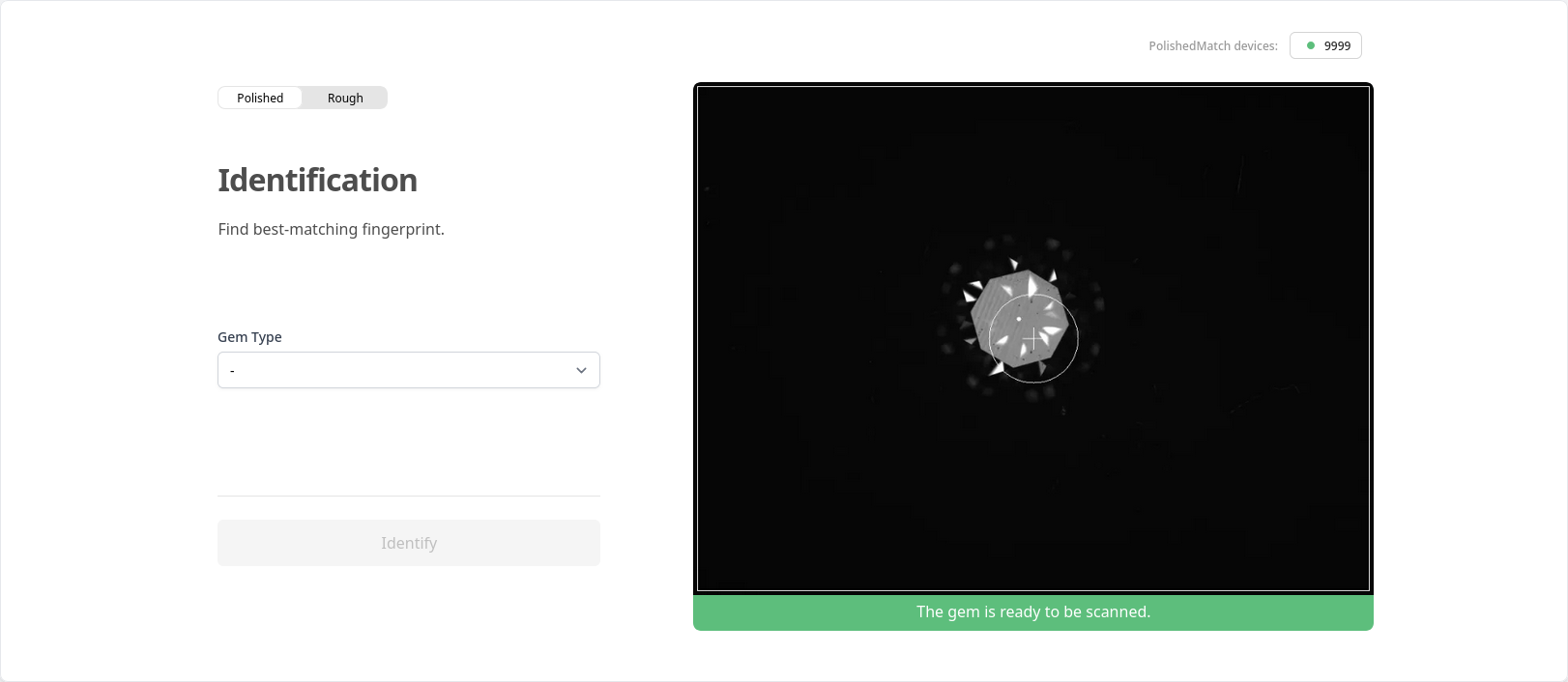
Select the gem Type and press the Identify button.
-
After few seconds, the identification results will be displayed in a pop-up. Possible results:
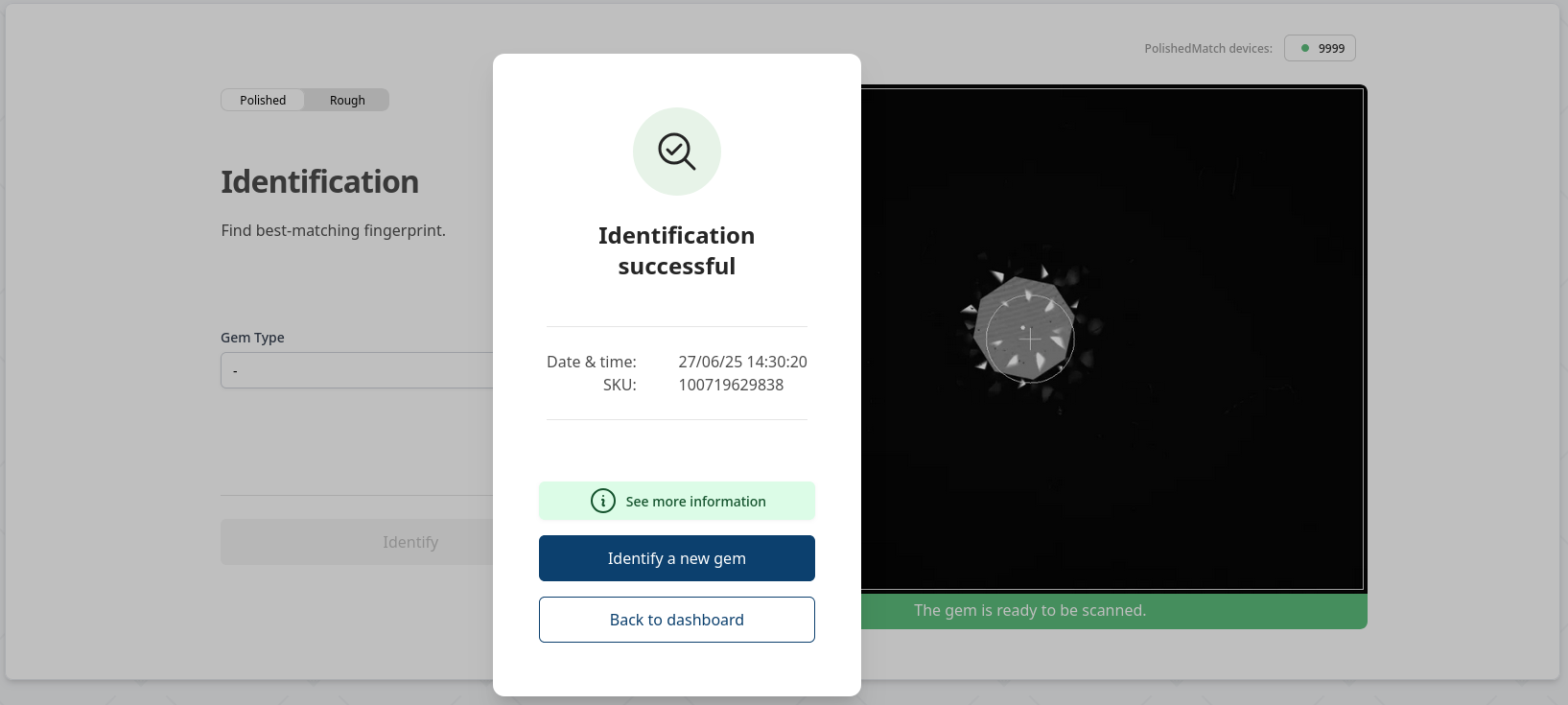
- Successful identification: green pop-up showing the SKU of the best matching fingerprint found in the company database. The gem you are analyzing has been recognized to be the one associated to the displayed SKU
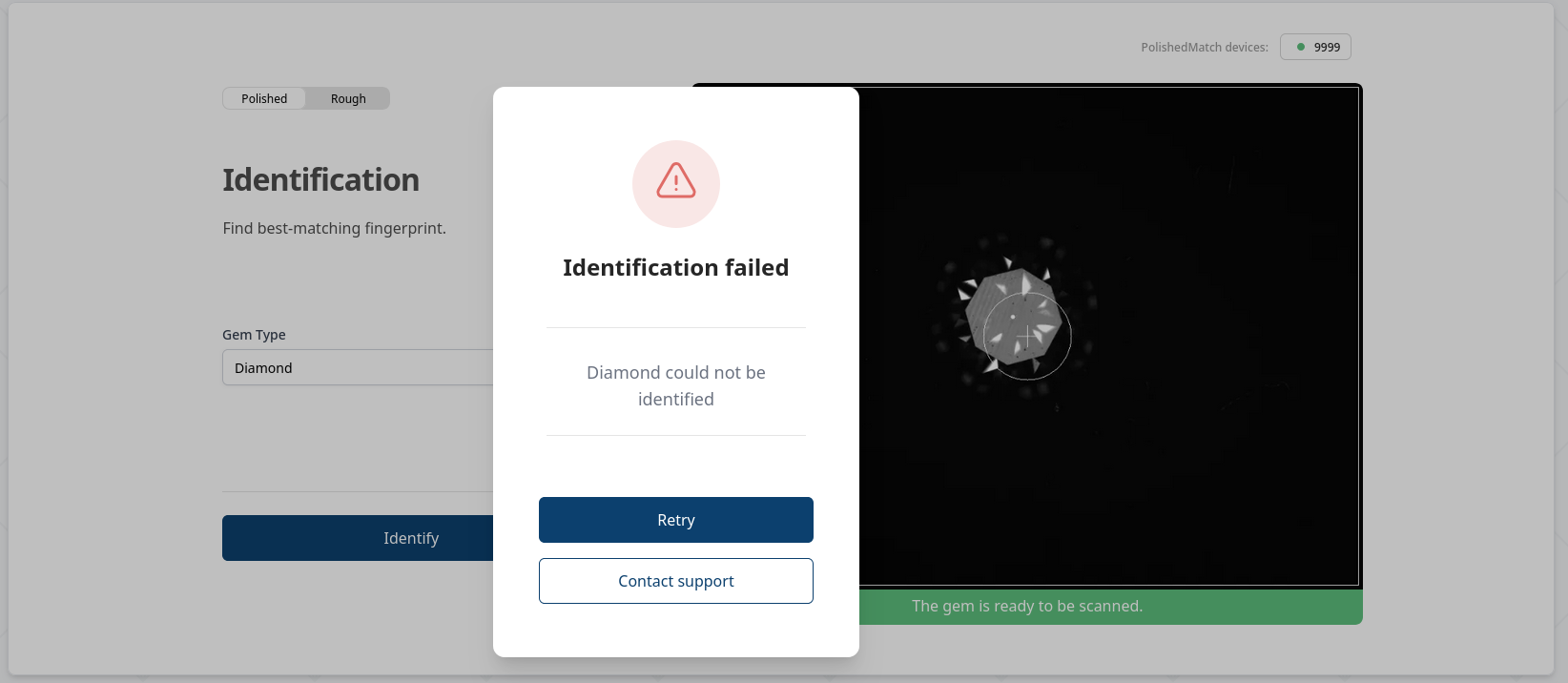
- Failed authentication: red pop-up, the gem does not match any SKU, i.e. the stone you are analyzing has never been fingerprinted.
- Error: red pop-up, an error occurred while processing the image. Please clean the gem and the device glass and try again.