RoughMatch user manual
Installation
1. Hardware setup
We recommend to set up your RoughMatch device on your desk next to your computer screen, and to place the vacuum pump under your desk.
2. Power supply
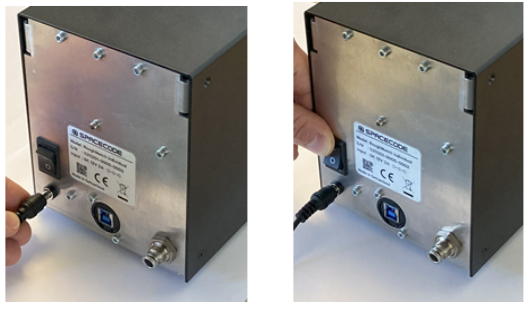
Connect the power supply and turn on the device.
Info
Please only use the provided power supply. Non-homologated power supplies could cause damage to the device, which will void the warranty of the lease agreement.
3. USB connection
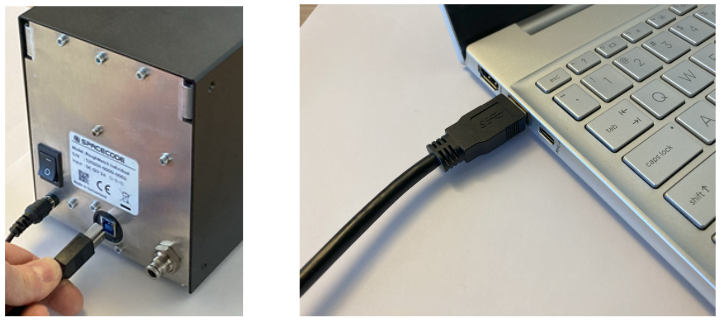
Connect the device to a USB 3 port on your PC with the provided USB cable.
Info
Please only use the provided USB cable. Lower quality USB cables can result in a slow down or loss of comunication between the PC and the RoughMatch device.
4. Vacuum pump
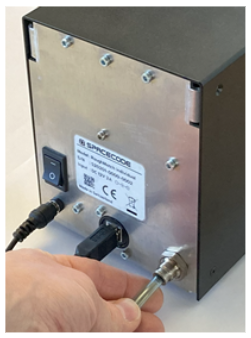
Connect the device to the vacuum pump with the provided pneumatic tube and turn on the pump.
Warning
The pump needs to be turned off when the device is not in use for longer than 5 minutes.
5. Software
Start the RoughMatch program. You will be able to see it running in the windows tray.
Info
If you have ordered a PC with your RoughMatch device, the RoughMatch program is pre-installed and located on the destkop. If you need to install or update the program, open this link, sign in with your credentials and download and install the latest RM Service. Please refer to account management in case you have trouble signing in.
In case your computer was not provided by Spacecode, you will also need to download and install the Galaxy Windows SDK. The software is free but requires you to create an account in order to download it.

Fingerprinting
To fingerprint a diamond, click on DiamondMatch → RoughMatch → Fingerprinting in the side bar or open this link
Please make sure that both device and pump are turned on and that the RoughMatch program is running, and follow the instructions in the step-by-step assistant.
Info
Every diamond is linked to a SKU at fingerprinting under which it can be found in the inventory, and against which it can be authenticated. Optionally, a diamond can directly be added to an already existing folder at fingerprinting.
Info
Two scans are required during fingerprinting to ensure a complete 3D model without flat spots from the diamond stage. Once the complete 3D model has been generated, the carat weight of the diamond is displayed based on the volume of the 3D model.
Authentication
To authenticate a diamond, click on DiamondMatch → RoughMatch → Authentication in the side bar or open this link.
Make sure that both device and pump are turned on and the RoughMatch program is running, and follow the instructions in the step-by-step assistant.
Info
You can authenticate a diamond both against a single diamond via its SKU or against multiple diamonds via a folder. In case of authentication against a folder, the diamond is matched against all diamonds within that folder.
Info
Unlike during fingerprinting, only one scan is required during authentication.